I need both Linux and Windows environments at the same computer. I have been a Linux desktop user for almost 20 years, but some of the tools I use recently require Windows 10. Dual boot was a great solution, but it required double hard disk space and maintenance. One of my daily driver tools is Windows-only and a heavy GPU consumer, thus I changed my primary OS to Windows, and my Linux experience relies on WSL (Windows Subsystem for Linux).
In the beginning I had concerns about this step but finally I am convinced that WSL2 is mature enough to be used as a daily driver. Let’s see an overview of my daily productivity on Windows 10 using WSL2 and a Debian Linux instance and Python3 development environment!
In short: Windows 10 is the base OS. WSL runs on the Windows that runs Debian. The Visual Studio Code runs on the Windows as well and it connects to the Debian instance with a remote connector.
Things on the table
The following elements are integrated well in my solution:
- Windows Subsystem for Linux version 2 on Windows 10
- Debian Linux in WSL2
- Python3
- Visual Studio Code
- Python virtual environments
The installation of these tools are straightforward and easy. Let’s focus on the integration part, especially the Visual Studio and Python!
How to use the virtual environments on the Linux?
I found multiple ways to use Visual Studio Code and Python3 venv, but I settled with the following solution.
The data of the virtual environments are in a separate directory in my $HOME from the code. I create a virtual environment for every individual project I work on. To be able to create virtual environments in Python3 on Debian Linux the following packages must be installed:
- python3
- python3-virtualenv
- python3-pip
sudo apt install python3 python3-virtualenv python3-pipThen we can create virtual environments in the conventional way.
python3 -m venv <directory for the env>Activating a virtual environment on the command line happens with the following command.
source $HOME/<path to env>/bin/activateAdding Visual Studio Code to the picture
Visual Studio Code supports the Python virtual environments. To be able to develop on the WSL Debian instance the Remote – WSL module must be installed. It can be happen in the extensions panel of the software, or by hitting Ctrl + Shift + X if the panel is closed. After the successful installation the Remote Explorer panel will see the installed WSL Debian system. The connection to the WSL Debian is going to open a new Visual Studio Code window. Here the Python Module can be installed as well.
After connecting to the remote WSL the Explorer panel can open any folder (project) on the WSL hard drive. The Explorer can be opened by hitting the Ctrl + Shift + E key combination. Here I simply open the project directory from the menu.

After opening the project and browsing a Python file the bottom-right corner will show the active Python interpreter. Normally it is the interpreter installed by the system.

Clicking on the version (3.9.2 …) is going to open a “Select Interpreter” window on the top of the screen.
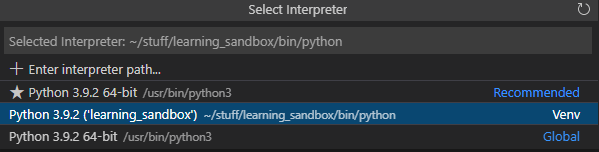
The environment can be browsed out here. I used the “+ Enter interpreter path…” option. The Python binary is under the <environment>/bin/python. Choosing this interpreter activates the venv.
Voilá! Using the play button in the editor window, or hitting F5 / Ctrl F5 will use the virtual environment of our choice.
 Tom's IT Cafe