Hyper-V is the virtualization hypervisor technology of Microsoft. There are different versions of Hyper-V, and we can use the desktop version on our Windows 10 or Windows 11. It is similar to VMWare Workstation Pro or VirtualBox, though its feature set is quite limited.
Hyper-V is available on 64-bit versions of Windows 10 Pro, Enterprise, and Education. It is not available on the Home edition. We will enable and use Hyper-V on Windows 10 Pro now.
Enabling Hyper-V and installing its tools
To be able to enable Hyper-V we have to press the Windows key and start typing “turn windows features”. There will be an option called Turn Windows features on and off. We will use this tool to enable the Hyper-V features.
Let’s look for Hyper-V now and enable it!
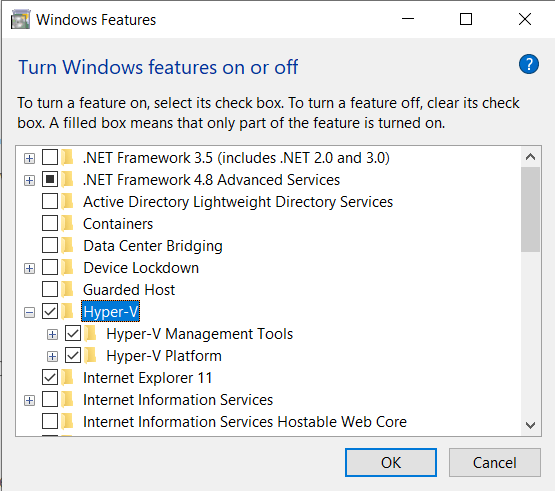
Now we have to reboot our computer!
After the reboot we can open the Hyper-V Manager application from the Start menu.
Installing a virtual machine
Let’s grab a Debian netinstall image from the official website and install a virtual Debian in Hyper-V!
We start with the minimal installation,.
Let’s use the New -> Virtual Machine from the menu on the right pane, and follow the instructions of the wizard.

We have to configure the virtual hardware carefully. The memory and CPU usage must be set up according to the host machine’s resources and performance.
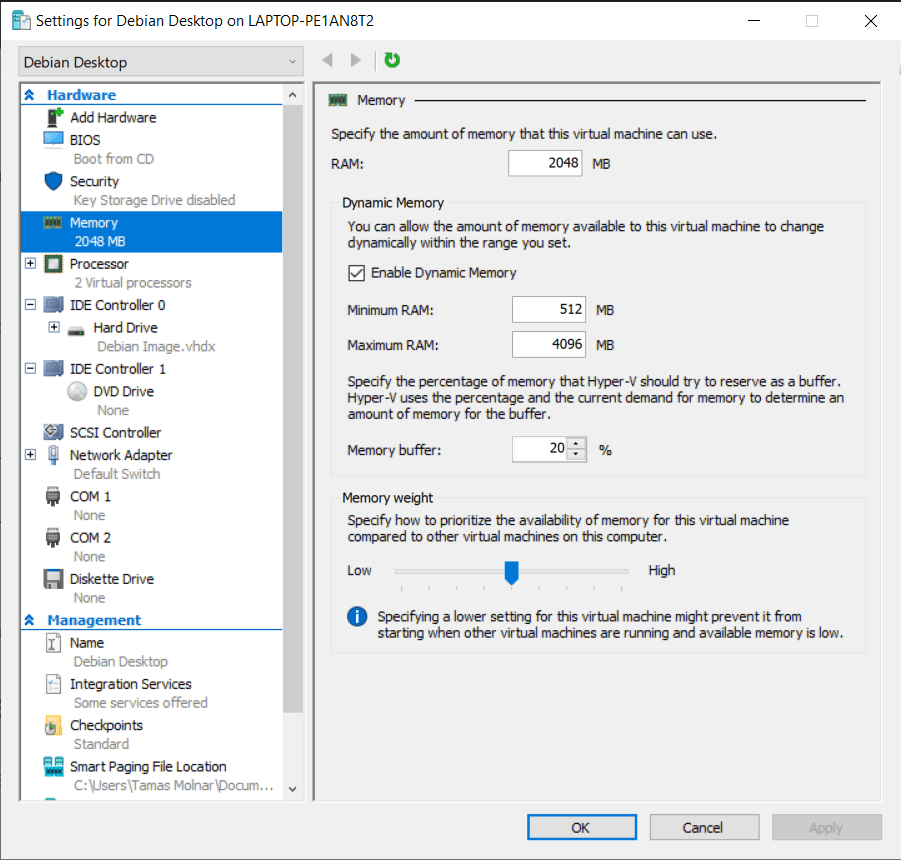
The installation procedure is like a physical installation.
Creating a VM template – Export
It is a good expectation to be able to create a template from a virtual machine. Hyper-V can create such templates with the Export function.
Let’s shut down the installed virtual machine first.
Then we can use the Export... function of the menu in the right side.
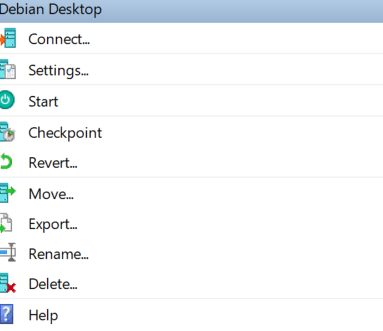
We have to browse a folder to export the VM template to.
Exporting a virtual machine works quite well in Hyper-V.
Import a VM template – cloning a VM
According to the many forum posts on the internet exporting a VM then importing it is the way to clone a virtual machine. Unfortunately I find this way very buggy and uncomfortable.
We can import a virtual machine in the right menu.
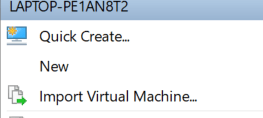
We have to browse the folder of the exported VM template.
Then select the virtual machine we want to import:

Then we have to decide how to import the machine. If we plan to create a brand new instance from the template, then the third option will work.

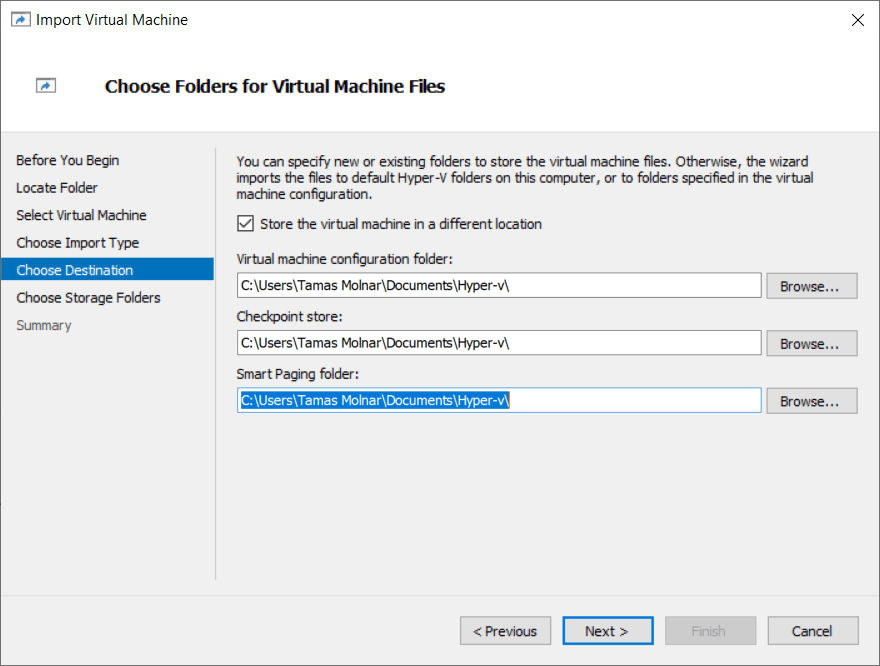
Then we have to select where to store the files of the imported machine.
And finally to choose a folder for the virtual disk image.

Then clicking on the Finish button will import the machine.
We can rename it now in our VM gallery.
Note: I found an issue with importing machines from the same template – the virtual disk is called the same for each import. I had to create a new directory for every imported virtual machine disk. It’s a good workaround, but not a full solution.
Checkpoints (snapshots of a VM)
We can create checkpoints in the right menu pane. Then in the VM’s Checkpoints manager in the center pane we can rename, edit or delete our checkpoints.

Hyper-V creates checkpoints automatically when we start a virtual machine. It can be configured in the settings.
Networking
Hyper-V provides a default switch configured to NAT access through the host computer’s networking. It works out of the box, but we can create a new external switch to create a bridge network for our VMs.

It’s quite basic, but it works. We don’t want to run it in a data center, so it’s enough.
Running Linux VMs
Running headless Linux virtual machines is very smooth, but if we want a desktop environment, then there is an issue. The installed virtual machine do not want to run in a better resolution than 1024×768. The automatic scaling and increasing the resolution does not work out of the box.
Update (2023. 03. 05.): It is possible to set up the video configuration of a VM from PowerShell:
set-vmvideo -vmname "Debian Desktop" -horizontalresolution:1920 -verticalresolution:1080 -resolutiontype default
There are different solutions on the internet for this issue. Setting up the GRUB in the virtual machine can work, but the solution will not scale our window dynamically.
In the time of writing this I have not found any working solution for dynamically scaling the Linux guest or using it full screen.
Final thoughts
Hyper-V on Windows would be a comfortable and good choice, but some annoying things are preventing me to use it on a daily basis. The unstable cloning procedure (export/import) and the lack of Linux desktop support are real show stoppers.
If you have anything to share then please visit my Tom’s IT Cafe Discord Server!
 Tom's IT Cafe